Uniden Homepatrol · Volume 5
Uniden Homepatrol — Vol 5: Upgrades & Firmware
Load-by-location digital scanner, no per-channel programming
5.1 About this volume
This volume answers the questions HomePatrol owners ask most often. Can a HomePatrol decode P25 Phase II? Is there an upgrade for it? What is the “Extreme” upgrade, and is it worth buying? Can the scanner be updated from its SD card instead of over USB? The short answers:
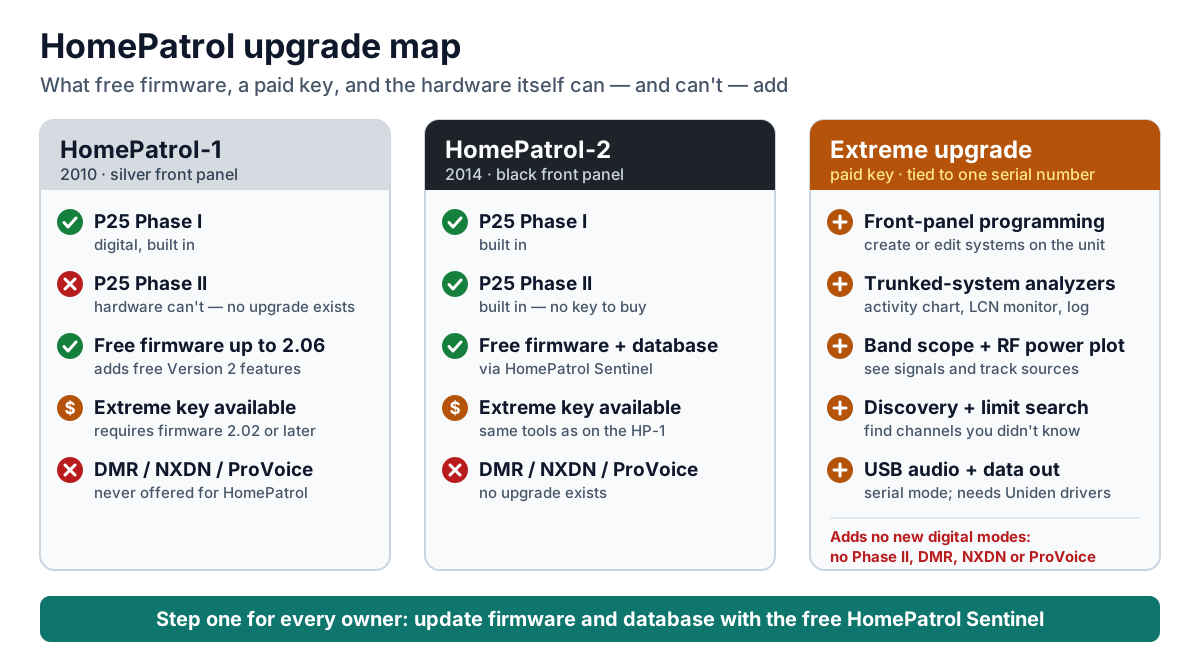
- HomePatrol-1: no Phase II, ever. It decodes P25 Phase I. No firmware update or paid upgrade adds Phase II. Uniden never offered one, and the hardware was not built for it.
- HomePatrol-2: Phase I and Phase II are both built in. There is no key to buy and nothing to unlock.
- The Extreme upgrade does not add Phase II, DMR, NXDN, or ProVoice. It adds power-user tools: programming on the scanner itself, system analyzers, a band scope, discovery modes, and USB audio output.
- Updates are free. Firmware and the weekly database come from Uniden through a free Windows program called HomePatrol Sentinel. It works over the USB cable, or with the microSD card in a card reader.
The rest of the volume explains each point in plain language, with step-by-step procedures and links to the software and manuals. For day-to-day Sentinel use (favourites lists, profiles, backups), see Vol 3 — Programming.
5.2 Start here: update the firmware first
If you do only one thing, update the firmware and the database. Many HomePatrols in use today still run the firmware they shipped with. Their owners have never connected them to a PC since the day they came out of the box. Such a scanner is missing years of fixes and features, and it is working from a database that no longer matches the radio systems around it. The update is free, takes about fifteen minutes, and is the single biggest improvement most owners can make.
Why it matters:
-
Free features you may not have. Uniden’s own manual for firmware version 2 describes a set of features every HomePatrol-1 gets from the free update, no purchase required:
- per-channel delay
- up to 256 Favorites Lists monitored at once
- more precise department locations
- channel alerts
- unit ID tagging
- ID search
- emergency alerts on compatible systems
An HP-1 still on version 1.x firmware has none of these.
-
Fixes. Later releases fixed power-off and reboot bugs, improved how the scanner detects talk-group and unit IDs, and added support for newer system configurations.
-
The Extreme upgrade needs it. The Extreme key only works on HP-1 firmware 2.02 or later.
-
The database goes stale fast. Uniden republishes the HomePatrol database every week, and recommends updating it every few weeks. Agencies change frequencies, add talkgroups, and migrate systems constantly. A years-old database can make a HomePatrol look “broken” when it is simply listening in the wrong places.
How often to update. Update the database every few weeks, and check for firmware at the same time. Uniden’s firmware releases for both models ended years ago: the HP-1’s last release is version 2.06, and the HP-2 has had very few since launch. So a unit that has been brought current once rarely needs another firmware update, but the database stays an ongoing job. Sentinel also notifies you when a newer version of Sentinel itself is available.
The procedure is in How to update: HomePatrol Sentinel over USB below.
5.3 Identifying the model
Everything in this volume depends on the generation, so identify it first:
Table 1 — Everything in this volume depends on the generation, so identify it first
| Clue | HomePatrol-1 | HomePatrol-2 |
|---|---|---|
| Front panel colour | Silver | Black |
| Name on the unit and box | HomePatrol (HomePatrol-1) | HomePatrol-II / HomePatrol-2 |
| Released | September 2010 | Late 2014 |
| Power | Separate DC power jack; shipped with an AC adapter and a car charger | No separate jack; runs and charges from the mini-USB port |
| microSD card shipped | 2 GB | 4 GB |
| Antenna jack | SMA | SMA (an SMA-to-BNC adapter is included) |
The front-panel colour is the fastest tell. Both generations share the same case size, the same 3.5-inch touchscreen, the same mini-USB port, four AA batteries, and the same menus. That is why they are so often confused.
5.4 What each model can decode
Here is what each model can receive out of the box and what can be added. The SDS200 is included for comparison, because it is the usual next step up.
Table 2 — What each model can decode
| Capability | HomePatrol-1 | HomePatrol-2 | SDS200 (for comparison) |
|---|---|---|---|
| Analog conventional, Motorola, EDACS, LTR | Yes | Yes | Yes |
| P25 Phase I (digital) | Yes | Yes | Yes |
| P25 Phase II (digital TDMA) | No — cannot be added | Yes — built in, no key | Yes — built in |
| DMR, NXDN, ProVoice | No — no upgrade exists | No — no upgrade exists | Paid keys, about $50–60 each |
| Paid “Extreme” upgrade | Available (firmware 2.02 or later) | Available | Not applicable — comparable tools are standard |
| Update software | HomePatrol Sentinel | HomePatrol Sentinel | A separate, newer Sentinel edition |
| Update over USB | Yes | Yes | Yes |
| Update with the microSD card in a card reader | Yes | Yes | Yes |
5.4.1 Why the HomePatrol-1 can’t get Phase II
P25 Phase I and Phase II are two different ways of fitting voice onto a radio channel. Phase I (FDMA) gives each conversation its own narrow channel. Phase II (TDMA) splits one channel into two rapidly alternating time slots, so two conversations share it. That doubles capacity, which is why most large public-safety systems have moved to it.
Decoding two-slot TDMA needs processing capability the HomePatrol-1 was never built with. The HomePatrol-2 added an extra processor alongside its other internal changes. Uniden never released a Phase II firmware update or paid upgrade for the HP-1. When HP-1 owners asked what to do about a local system migrating to Phase II, Uniden’s representative recommended the HomePatrol-2.
One detail causes confusion. HP-1 firmware 2.02 added limited support for Motorola X2-TDMA systems, a predecessor to Phase II. That support covers only the Phase-I-style (FDMA) talkgroups those systems sometimes carry. It does not make the HP-1 decode two-slot TDMA voice.
Does this matter where you live? Look up your county on RadioReference. Each trunked system’s page lists its system type. If the systems you care about say Project 25 Phase II, an HP-1 will not hear their voice traffic, and the fix is an HP-2 or a newer scanner such as the SDS100 or SDS200. If they say Project 25 Phase I, or are analog or conventional, the HP-1 still works.
5.4.2 Common myths
Table 3 — Common myths
| You may have heard… | The facts |
|---|---|
| ”The HomePatrol-2 needs a paid Phase II key.” | No. Phase II is standard on every HP-2. |
| ”Buy the Extreme upgrade to get Phase II.” | No. Extreme adds tools, not digital modes, on either model. |
| ”There is a DMR or NXDN upgrade for the HomePatrol.” | No. Those upgrades exist for the BCD436HP/BCD536HP and SDS series, not the HomePatrol. |
| ”Database updates need a RadioReference subscription.” | No. The HomePatrol database comes from Uniden, free, every week. |
| ”The SD card can’t be used to update the scanner.” | It can. A card reader is a well-established alternative to the USB cable (see below). |
5.5 What the HomePatrol can’t hear
The HomePatrol’s gaps are larger than those of the newer Uniden scanners, because no HomePatrol upgrade adds any digital mode. The Extreme upgrade included (see the next section), nothing you can buy fills the gaps below.
Silent on both the HomePatrol-1 and HomePatrol-2, permanently:
- DMR / MotoTRBO: common on school, utility, business, and some county and fire systems.
- NXDN: used by some utilities, railroads, and county systems.
- EDACS ProVoice: found on a few older state and county EDACS systems. Both HomePatrols follow EDACS systems but can’t decode ProVoice voice.
The newer scanners get these modes as paid keys: the BCD436HP/BCD536HP and the SDS100/SDS200. See the BCD536HP, SDS100, and SDS200 Upgrades & Firmware volumes.
Silent on the HomePatrol-1 only:
- P25 Phase II voice. Most major public-safety systems have moved to Phase II, so this is the gap HP-1 owners notice most. The HP-2 decodes Phase II; the HP-1 never will (see Why the HomePatrol-1 can’t get Phase II, above). On Motorola X2-TDMA systems, the HP-1 hears only the Phase-I-style talkgroups some of those systems carry.
Silent on every scanner, HomePatrol or not:
- Encrypted voice of any kind. That includes P25 Phase I and II, DMR, NXDN, and ProVoice, whether the encryption is AES, DES, or Motorola ADP. The scanner mutes it, and decrypting it would be illegal. Owners run into this more than anything else on this list: many agencies encrypt tactical, investigative, and sometimes all dispatch talkgroups.
- OpenSky (M/A-COM/Harris). It uses a proprietary, non-public protocol with no control channel, and no scanner has ever been able to monitor it. Pennsylvania’s statewide network used it until 2022.
- TETRA. It isn’t used for US public safety, and no Uniden scanner decodes it.
- Analog voice scrambling, such as voice inversion or rolling-code scramblers.
- Push-to-talk over cellular (LTE), including FirstNet push-to-talk apps, Motorola WAVE, and Harris BeOn. This travels as cellular data, not radio voice a scanner can receive.
- Anything outside the HomePatrol’s frequency coverage. Both models tune 25–512, 758–824, 849–869, 894–960, and 1240–1300 MHz. The cellular bands are blocked by law, and nothing above 1300 MHz is covered, including the 4.9 GHz public-safety band, which carries mostly data anyway.
How to check your area. Look up each system you care about on RadioReference:
Table 4 — How to check your area. Look up each system you care about on [RadioReference](https://www.radioreference.com)
| System shows… | HomePatrol-1 | HomePatrol-2 |
|---|---|---|
| Project 25 Phase I, Motorola analog, EDACS (analog voice), LTR, conventional | Hears it | Hears it |
| Project 25 Phase II | Silent | Hears it |
| DMR, NXDN, or EDACS ProVoice | Silent (no upgrade exists) | Silent (no upgrade exists) |
| Encrypted talkgroups (a mode ending in E, such as DE or TE), or an OpenSky system | Silent on any scanner | Silent on any scanner |
A HomePatrol with a current database still lists these systems when you enter a ZIP code, because the database describes what’s on the air. Seeing a system in the list doesn’t mean the scanner can decode its voice.
5.6 What the Extreme upgrade is
The Extreme upgrade is an optional, paid software unlock for both the HomePatrol-1 and HomePatrol-2. The HomePatrol was designed as an appliance: enter a ZIP code and listen. Extreme turns it into a tool for hobbyists who want to explore and analyze radio systems, not just listen to the ones already in the database.
Extreme does not change what the scanner can decode. An HP-1 with Extreme still cannot hear Phase II, and neither model gains DMR, NXDN, or ProVoice.
What Extreme adds, per Uniden’s Extreme owner’s manual:
Table 5 — What Extreme adds, per Uniden's Extreme owner's manual
| Feature | What it does, in plain terms | Who uses it |
|---|---|---|
| Complete field programmability | Create new systems or edit existing ones on the touchscreen, with no PC needed. Adds per-channel settings such as delay, alerts, volume offset, and service type. | Owners who add local channels missing from the database, or program on the road |
| Trunked System Analyzers | Screens showing how well a trunked system’s control channel is received, which channels are busy, a live activity chart, an LCN activity monitor, an activity log saved to the SD card, and a talk-group ID converter | Hobbyists mapping or troubleshooting reception of a trunked system |
| EDACS / LTR LCN Finder | Works out the logical channel number (LCN) assignments that EDACS and LTR systems need before a scanner can follow them | Anyone programming an EDACS or LTR system whose LCNs aren’t published |
| Band Scope | A graph of signal strength across a range of frequencies, showing where the activity is | Finding unknown transmitters; checking an antenna |
| RF Power Plot | A graph of one frequency’s signal strength over time | Locating a signal source; seeing how antenna position or weather affects reception |
| Trunking Discovery | Monitors a trunked system and automatically logs and records talkgroups not already in the database, for later review | Finding new or unlisted talkgroups |
| Conventional Discovery | Searches a frequency range for active channels not already known in your area, logging and recording what it finds | Finding unlisted conventional channels (businesses, events, utilities) |
| Limit Search | A classic scanner search between two frequencies you choose | Exploring a band manually |
| USB audio output and control, raw data output | A second USB “serial” mode that streams audio, outputs raw decoded data, and allows remote control from third-party PC software | Recording or streaming audio to a PC; feeding decoding and logging software |
Who should buy it. Owners who enjoy exploring (finding unlisted channels, analyzing systems, programming without a PC, or recording to a computer) get real value from it. Who should skip it. Owners who only want to hear local police, fire, and EMS from the built-in database do not need it. They should update the firmware and database instead, which costs nothing.
5.6.1 Buying and activating the Extreme key
- Update first. Install the current HomePatrol Sentinel and bring the scanner’s firmware up to date (see the next section). On an HP-1 the key requires firmware 2.02 or later.
- Buy the key. Register the scanner at my.uniden.com, then choose the upgrade link under All My Scanners. The key is tied to the serial number you enter, so enter it carefully. Keys cannot be moved to another scanner and are not refundable once issued. Uniden launched the upgrade at $49.99; dealer listings in recent years run roughly $90–100. Check my.uniden.com for current pricing. Lost keys can be retrieved from the same All My Scanners page.
- Enter the key on the scanner. Turn the HomePatrol on and go to MENU → Advanced Menu → Advanced Option → Register Advanced. Enter the registration key exactly as provided, hyphens included, and tap ACCEPT. All Extreme features unlock at once.
5.6.2 After the upgrade: Mass Storage or Serial
Once Extreme is active, the HomePatrol asks which mode to use every time it is plugged into a PC:
- Mass Storage — for firmware updates, database updates, and everything else Sentinel does. When in doubt, choose this.
- Serial — for USB audio streaming, raw data output, and remote control by third-party software. Windows needs Uniden’s serial drivers the first time. They are available from Uniden’s HomePatrol update page, with a separate package for Windows 8 and later.
5.7 How to update: HomePatrol Sentinel over USB
This is Uniden’s documented method and the one to try first.
What you need
- A Windows PC with an internet connection. Sentinel is Windows-only, and it downloads firmware and databases from Uniden while it runs.
- HomePatrol Sentinel, free from Uniden. Download HomePatrol Sentinel 2.03.02 (zip), or find it on the HomePatrol-2 download page. One program covers both the HP-1 and HP-2. It is not the same program as the Sentinel for the BCD436HP/BCD536HP or the SDS100/SDS200, so install the HomePatrol edition. Unzip the download, run Setup.exe, and follow the prompts. There is no need to remove an older version first.
- A mini-USB data cable. Some cheap cables only carry charging power and will not connect.
- Power. Put in fully charged batteries or connect external power. Never let a firmware update run on weak batteries.
Update the firmware
- Connect the HomePatrol to the PC with the USB cable and turn the scanner on.
- If the scanner asks, choose Mass Storage. Its screen turns white while connected.
- Start Sentinel and select UPDATE → Update Firmware. Sentinel checks Uniden’s server for the latest firmware and writes it to the scanner. You do not need to know the installed version beforehand.
- When Sentinel finishes, disconnect the USB cable. The HomePatrol applies the update and reboots. Do not turn it off or remove the batteries while it does.
Update the database
- Reconnect (choose Mass Storage if asked) and, in Sentinel, select UPDATE → Update Master HPDB to download Uniden’s latest weekly database.
- Select HomePatrol → Write to HomePatrol to copy it to the scanner.
- Disconnect, let the scanner restart, and check that your ZIP code loads the expected systems.
Before a big update, save a profile. Sentinel can save the scanner’s settings, Favorites Lists, and avoids as a profile. That makes it easy to put things back if anything goes wrong (Vol 3 — Codeplug backups). And always turn the scanner off before unplugging external power: Uniden notes that some settings are saved only as the scanner powers down.
5.8 Alternative: update the microSD card in a card reader
The HomePatrol keeps its database, Favorites Lists, recordings, and the files that carry firmware updates on its microSD card. Sentinel can therefore do the same work with the card in an ordinary PC card reader, treating the card as though it were the scanner. This method is widely used in the HomePatrol community, though it is not described in Uniden’s owner’s manuals. It is the usual fix when:
- the scanner will not connect over USB (a worn port, a bad cable, or a driver problem),
- USB transfers are slow or keep failing, or
- the card itself is corrupted and needs rebuilding.
Steps
- Turn the scanner off. Remove the battery cover. The microSD card is under it, so push the card in gently and it pops out.
- Put the card in a microSD card reader (or an SD-size adapter in a standard reader) on the Windows PC.
- Start Sentinel. It should see the card as the scanner. If the card does not appear in a drive list, tick show all drives.
- Run UPDATE → Update Firmware, then UPDATE → Update Master HPDB and HomePatrol → Write to HomePatrol, the same as over USB.
- Eject the card safely in Windows, put it back in the scanner, replace the cover, and power on. If the scanner shows it is applying a firmware update, leave it alone until it finishes.
Rebuilding a corrupted card. If the scanner reports SD card errors or will not start properly, rebuild the card:
- Back up anything worth keeping first. Save a profile if Sentinel can still read the card, and copy off any recordings.
- Format the card with the SD Association’s free SD Memory Card Formatter, choosing the Overwrite format option so the card is checked as well as erased.
- In Sentinel, run Clear User Data on the card (tick show all drives to find it).
- Run Update Firmware and write the database as above.
Use a name-brand card of 32 GB or smaller. Formatting erases everything on the card, including Favorites Lists and recordings, so do not skip the backup.
5.9 The SDS200, briefly
The upgrade picture is different on Uniden’s current SDS200 base/mobile scanner:
- P25 Phase I and Phase II are standard.
- DMR, NXDN, and ProVoice are separate paid upgrades. Each is a per-radio key bought through my.uniden.com (dealer listings put them at roughly $50–60 each) and entered on the radio under Menu → Settings → Upgrade. Each needs current firmware to work.
- Firmware updates use Sentinel in the same two ways: over USB in Mass Storage mode, or with the microSD card in a card reader. When the card goes back in, the radio applies the new files at power-up. The SDS200 uses its own, newer Sentinel edition, available from the Uniden SDS200 download page.
See the SDS200 deep dive for the full treatment.
5.10 Downloads and manuals
Firmware and software on this site. Every firmware and software release archived for the HomePatrol, including superseded versions, is listed at scanners.fubsypoly.com/downloads/#uniden-homepatrol. Each hosted download is the original publisher’s file, unmodified, packaged with a README and SHA-256 checksums and malware-scanned; each release page carries the full README and the other versions.
Table 6 — Downloads and manuals
| Product | Recommended release |
|---|---|
| HomePatrol-1 firmware | 2.06.03 |
| ProScan | paid — vendor only |
| HomePatrol-1 serial driver (Windows XP/Vista/7) | 3.0.0.0 (2010-07-06) |
| HomePatrol Sentinel | 2.03.02 |
| Uniden USB serial driver | 1.0.0.0 (2014-01-01) |
Manuals — Uniden’s documents, kept in this site’s Reference Library for download:
Table 7 — Manuals — Uniden's documents, kept in this site's Reference Library for download
| Document | Covers |
|---|---|
| HomePatrol-2 Owner’s Manual | HomePatrol-2 setup, operation, Sentinel, updating firmware and database |
| HomePatrol-1 Owner’s Manual | HomePatrol-1 with firmware 2.02 and later, including the free Version 2 features |
| HomePatrol Extreme Owner’s Manual | Activating and using every Extreme feature. Written for the HP-1; the HP-2’s Extreme feature set is the same. |
| HomePatrol Quick Reference Guide | Two-page guide to the main screen, ZIP-code entry, and common actions |
All HomePatrol documents in one list: Reference Library — HomePatrol.
Software and Uniden pages
- HomePatrol Sentinel 2.03.02 (zip) — free Windows software for both HomePatrol models
- Uniden HomePatrol-2 download page — Sentinel and the HP-2 manuals
- Uniden HomePatrol support pages — manuals, Sentinel, drivers, and update notes
- HomePatrol Extreme Upgrade — Uniden’s feature list and purchase details
- HomePatrol update and serial-driver page — Extreme activation steps and serial drivers
- HomePatrol-1 firmware history — what each HP-1 firmware release changed
- my.uniden.com — register a scanner, buy upgrade keys, retrieve lost keys
- SD Memory Card Formatter — for rebuilding a corrupted microSD card
- Uniden SDS200 download page — Sentinel for the SDS series
Sources
- Uniden America, HomePatrol-II Owner’s Manual (July 2014) and HomePatrol-1 Owner’s Manual, Version 2.02 — firmware and database update procedures, hardware, accessories, battery and power notes.
- Uniden America, HomePatrol-1 v2 Extreme Edition Owner’s Manual (2011) — Extreme feature list, activation, Mass Storage and Serial modes, update recommendations.
- Uniden: HomePatrol Extreme Upgrade, HomePatrol-1 Extreme update instructions, HomePatrol-1 Updates, HomePatrol-2 product page.
- RadioReference Wiki: HomePatrol-1, HomePatrol-2, SDS200.
- RadioReference forums: Home Patrol 1 & 2 (APCO Phase 1 & 2) (Uniden representative’s Phase II guidance), HomePatrol 1 & 2 Sentinel (card-reader and card-rebuild procedure), SDS200E upgrade keys, updating the SDS200 SD card outside the scanner.
- Scanner Master: HP1 vs. HP2 (front-panel colour, SD card size, USB charging).
- RadioReference Wiki: OpenSky, Trunked Radio Systems; RadioReference forums: OpenSky scanners, TETRA.
Comments (0)