Uniden Homepatrol · Volume 3
Uniden Homepatrol — Vol 3: Programming
Load-by-location digital scanner, no per-channel programming
3.1 Programming workflow
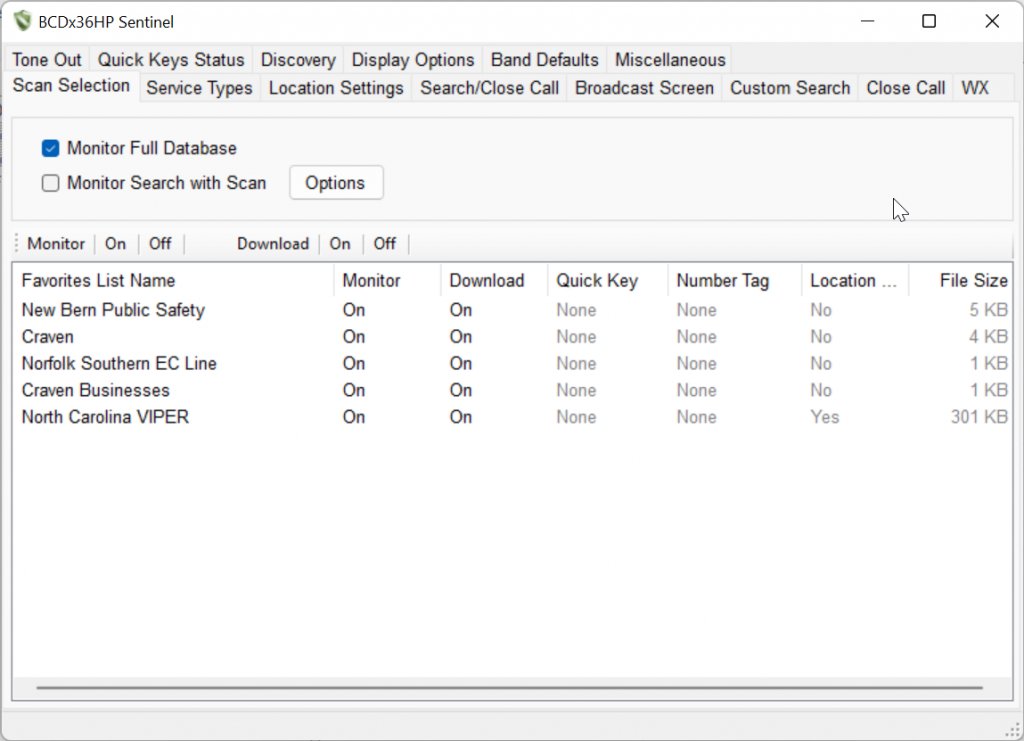
The HomePatrol uses Sentinel — Uniden’s free Windows-only configuration utility — for everything beyond the on-device ZIP-code workflow. Sentinel is covered in depth in Vol 3 (Programming software landscape); the HomePatrol-specific notes are below. The HomePatrol uses its own edition, HomePatrol Sentinel (current version 2.03.02, covering both the HP-1 and HP-2) — not the separate Sentinel builds for the BCD436HP/BCD536HP and SDS series. Download it free from Uniden: HomePatrol Sentinel 2.03.02 (zip), also listed on the HomePatrol-2 download page.
Keep the firmware and database current. Many HomePatrols in use have never been updated since they left the box, and are missing years of fixes, free features, and database changes. Updating is free and takes about fifteen minutes — the full procedure, the card-reader alternative, and the Extreme upgrade are in Vol 5 — Upgrades & Firmware.
What Sentinel does for the HomePatrol:
- Firmware updates — pulls the latest firmware from Uniden’s update server and writes it to the connected scanner (connect over USB, choose Mass Storage, then UPDATE → Update Firmware). Firmware update bricks are rare but possible; do not interrupt the operation, and keep the scanner on AC power throughout.
- Database refresh — downloads Uniden’s master database (built from RadioReference data and republished free, every week) with UPDATE → Update Master HPDB, then writes it to the scanner’s SD card with HomePatrol → Write to HomePatrol. No RadioReference subscription is required. This is the operation that keeps the ZIP-code workflow accurate; agencies add and remove systems, change frequencies, and migrate from Phase I to Phase II constantly. A snapshot more than 6-12 months old will have meaningful gaps in major metro coverage.
- Favourites list editing — Sentinel exposes the scanner’s internal favourites mechanism (systems-of-interest that bypass the ZIP-code-driven dynamic loading and are always scanned). Use favourites for: the local amateur repeaters that the RadioReference public-safety query doesn’t include, specific talkgroups within a county system that should always be monitored, business / utility systems not in the default categories.
- Per-system Quick Keys — toggle systems on and off without leaving scan mode. HomePatrol’s Quick Key implementation is shallower than the BCD536HP’s (10 keys vs. 100); for any operator who wants deep per-system organization, the BCD536HP is the better fit.
- Recordings transfer — pulls the SD card’s audio recordings to the host PC as WAV files for archival or playback.
What Sentinel does not do: ProScan-style per-talkgroup priority weighting, ARC-style per-frequency colour coding, custom database editing (RadioReference-or-nothing for the on-board database), or any of the deeper trunked-system diagnostics (control-channel decode logging, voice-channel hopping visualization) that the SDS100/200 line ↗ supports via their respective tools.
The cable is a standard mini-USB data cable on both generations (the same cable the HP-2 charges from). No special programming cable or driver is needed for Mass Storage mode — the scanner mounts like a USB drive. Serial mode, which exists only after the Extreme upgrade, needs Uniden’s serial drivers (Vol 5).
The first-run workflow for a new (or newly-acquired-used) HomePatrol:
- Install HomePatrol Sentinel from Uniden (link above).
- Connect the scanner with a mini-USB data cable and choose Mass Storage if it asks — the screen turns white while connected.
- UPDATE → Update Firmware — even on a unit that seems to work fine (Vol 5). Disconnect when Sentinel finishes; the scanner applies the update and reboots.
- Reconnect, then UPDATE → Update Master HPDB and HomePatrol → Write to HomePatrol (free; no subscription).
- Reboot the scanner. From the on-device main screen, enter a known-good ZIP and verify systems load correctly.
- Refresh the database every few weeks thereafter (Uniden’s recommendation), checking for firmware at the same time.
3.2 Codeplug backups
The HomePatrol’s “codeplug” is unusual among scanners — most of its working configuration lives on the SD card (database snapshot + favourites + recordings + Quick Keys) rather than in the device’s NOR flash. Sentinel exports the user-modifiable portions (favourites, Quick Keys, per-location preferences) as a single XML-based profile file; the database snapshot itself is treated as a refresh target rather than a backup artefact.
Backup pattern. From Sentinel → “Profiles” → “Save Profile” → export the HomePatrol profile to ../../programs/uniden-homepatrol/. Date-stamp the filename (e.g. homepatrol_profile_2026-05-24.spr for Sentinel Profile format). Backups should be taken before any major database refresh (so a problematic database update can be reverted by re-importing the old profile plus rolling back the database) and after any significant favourites-list edit.
Most recent backup: TBD — verify against the unit. No backups currently in the programs/uniden-homepatrol/ directory; the first session that touches the bench unit should create a baseline backup before any other edits. See the parallel backup discipline in Vol 15 §5 ↗ — the Sentinel data directory pattern applies identically here, since the same Sentinel installation manages both scanners.
Restore. From Sentinel → “Profiles” → “Open Profile” → select the saved .spr → “Write to Scanner”. This pushes the saved favourites and Quick Keys back to the scanner; if the database has also been corrupted (rare), re-run the RadioReference refresh to repopulate.
The “I bricked the firmware update” recovery. An interrupted update — cable pulled, batteries dying — can leave the scanner unable to start normally. Because the HomePatrol keeps its data and update files on the microSD card, the usual fix is to rebuild the card in a PC card reader: back up what you can, reformat it with the SD Association’s SD Memory Card Formatter, then run Sentinel’s Clear User Data and Update Firmware against it. The full procedure is in Vol 5. Prevention is simpler: update on fresh batteries or external power, over a data cable that is not loose.
Comments (0)