Uniden SDS100 · Volume 5
Uniden SDS100 — Vol 5: Upgrades & Firmware
TrueIQ baseband, P25 Phase II, ProVoice option, DMR/NXDN
5.1 About this volume
This volume answers the questions SDS100 owners ask most often. Does it decode P25 Phase II? What do the paid upgrades add, and which are worth buying? How is a key bought and entered? How is the firmware updated, and can the SD card be used for it? The short answers:
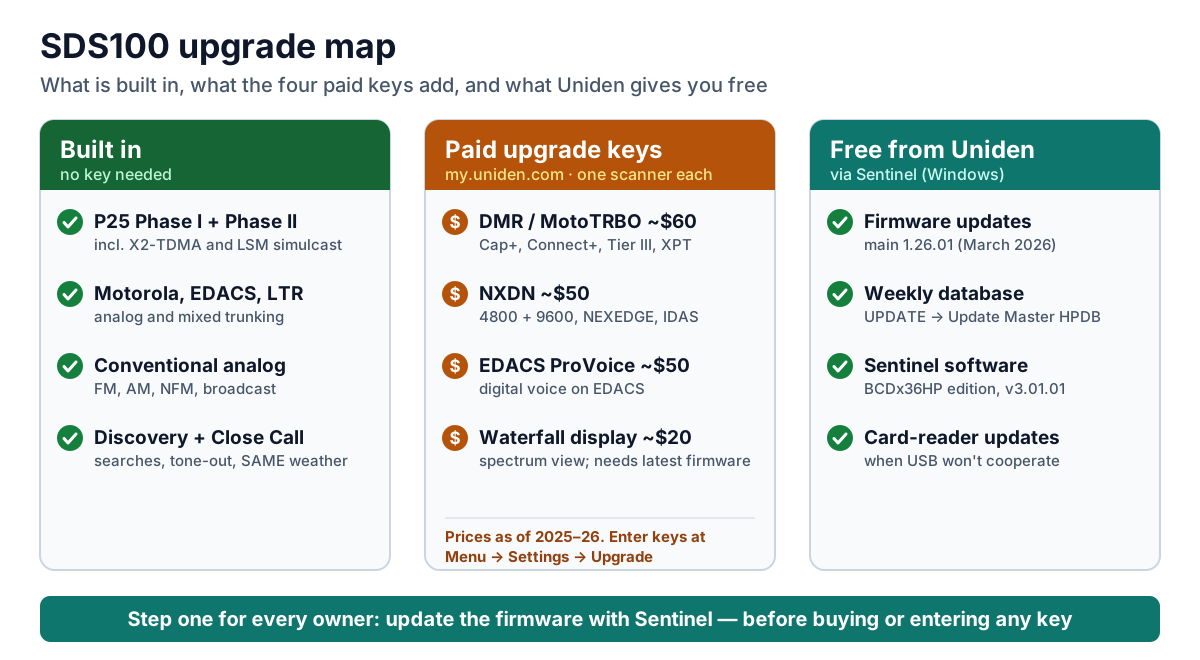
- P25 Phase I and Phase II are built in. So are Motorola, EDACS, LTR, X2-TDMA, and conventional analog. No key is needed for any of them.
- Four optional paid upgrade keys add DMR (including MotoTRBO), NXDN, EDACS ProVoice, and the Waterfall spectrum display. Each key is tied to one scanner and entered on the radio itself.
- Firmware and the weekly database are free. Both come from Uniden’s free Windows program, Sentinel, over the USB cable or with the microSD card in a card reader. There is no other way to update firmware.
- Update the firmware before anything else. Newer features, fixes, and some upgrade keys depend on it.
For day-to-day programming with Sentinel and ProScan, see Vol 3 — Programming.
5.2 Start here: update the firmware first
If you do only one thing, update the firmware and the database. Plenty of SDS100s in use still run the firmware they shipped with years ago. They are missing a long list of free improvements, and their database no longer matches the radio systems around them. Updating is free, takes about fifteen minutes, and is the first thing to do with any used or long-idle scanner.
A sample of what free firmware has added since the SDS100’s June 2018 launch, per Uniden’s change log:
- RF filter options for strong-signal areas, and better DMR and NXDN reception (2019)
- Finer search steps (2022)
- Support for the Waterfall spectrum display (the display itself is a paid key), digital decoding improvements, and a keypad lock mode (December 2023)
- Weather alert (EAS) event codes, and support for DMR Tier III and Motorola Capacity Max systems (2025)
- A headphone audio setting and squelch improvements for broadcast FM (2025)
- Fixes for P25 control channels and P25 Phase II voice handling, and Capacity Max late entry (late 2025 to 2026)
As of September 2026 the current release is main firmware 1.26.01 (March 27, 2026) with sub-processor firmware 1.03.15. Uniden’s SDS100 firmware change log lists every release.
Check what your radio is running at Menu → Settings → See Scanner Information → Firmware Version. The same screen shows the scanner’s electronic serial number (ESN), which you need to buy an upgrade key.
The database goes stale fast. Uniden rebuilds the scanner’s radio database from RadioReference data every week. Agencies change frequencies, add talkgroups, and migrate systems all the time. An old database can make the scanner look broken when it is simply listening in the wrong places. Update the database every few weeks, and check for firmware at the same time.
5.3 What’s built in and what’s a paid upgrade
Table 1 — What's built in and what's a paid upgrade
| Capability | Status on a US SDS100 | Typical use | Price (my.uniden.com, as of 2025–26) |
|---|---|---|---|
| Conventional analog (FM, AM, NFM, broadcast) | Built in | Everything analog | Included |
| P25 Phase I and Phase II, including X2-TDMA, simulcast (LSM), and one-frequency trunking | Built in | Most US public-safety systems | Included |
| Motorola, EDACS, and LTR trunking | Built in | Older trunked systems | Included |
| Discovery, Close Call, custom searches, tone-out, SAME weather | Built in | Finding signals and alerts | Included |
| DMR / MotoTRBO: Capacity Plus, Connect Plus, DMR Tier III, Hytera XPT, single-channel DMR | Paid key | Business, utility, school, and some government systems | About $60 |
| NXDN: both 4800 and 9600 (NEXEDGE and IDAS) | Paid key | Utilities, railroads, business fleets | About $50 |
| EDACS ProVoice | Paid key | Digital voice on some EDACS systems | About $50 |
| Waterfall display | Paid key | Seeing activity across a span of spectrum | About $20 |
Prices come from owners’ posted receipts, because Uniden’s store requires a login. Check my.uniden.com for current pricing. Dealers charge more for the same keys.
5.3.1 Choosing upgrades
Only buy a key for systems you actually want to hear:
- Look up your county on RadioReference and open the trunked systems and frequency listings you care about.
- Check each system’s type or mode, and match it to a key:
- DMR, MotoTRBO, Capacity Plus, Connect Plus, Capacity Max, or Hytera XPT need the DMR key.
- NXDN, NEXEDGE, or IDAS need the NXDN key.
- EDACS with ProVoice needs the ProVoice key.
- Project 25 (Phase I or II) needs nothing.
- The Waterfall key is for exploring. It draws a live graph of signals across a band, so you can spot activity and jump to it. It does not decode anything new.
A key only unlocks a decoder that is already in the firmware; it does not change the hardware.
5.3.2 Common myths
Table 2 — Common myths
| You may have heard… | The facts |
|---|---|
| ”P25 Phase II is an extra-cost upgrade.” | No. Phase I and Phase II are standard on every SDS100. |
| ”Waterfall is a free firmware feature.” | Firmware added support for it, but the Waterfall display itself needs a paid key. |
| ”You can install an upgrade key through Sentinel.” | No. Keys are entered on the scanner, under Menu → Settings → Upgrade. |
| ”A factory reset or a new SD card erases my keys.” | Keys are stored in the scanner’s internal memory, not on the card. They normally survive firmware updates, resets, and card changes. |
| ”You can update firmware from a USB thumb drive.” | No. Firmware comes only through Sentinel, over USB or with the card in a card reader. |
| ”The database needs a RadioReference subscription.” | No. Uniden’s weekly database is free. RadioReference Premium is only needed for ProScan’s direct RadioReference import. |
| ”The SDS100 has built-in GPS.” | No. It accepts an external GPS receiver, such as Uniden’s BC-SGPS kit, on its mini-USB port. |
5.4 What the SDS100 can’t hear
With all its keys installed, the SDS100 decodes essentially all unencrypted US public-safety voice. Some voice stays silent, though.
Silent until you buy the key (see the table above):
- DMR / MotoTRBO: common on school, utility, business, and some county and fire systems.
- NXDN: used by some utilities, railroads, and county systems.
- EDACS ProVoice: found on a few older state and county EDACS systems.
Silent no matter which keys you buy:
- Encrypted voice of any kind. This includes P25 Phase I and II, DMR, NXDN, and ProVoice, whether the encryption is AES, DES, or Motorola ADP. The scanner mutes it, and decrypting it would be illegal. You’ll run into this more than anything else on this list: many agencies encrypt tactical, investigative, and sometimes all dispatch talkgroups.
- OpenSky (M/A-COM/Harris). OpenSky uses a proprietary, non-public protocol with no control channel, and no scanner has ever been able to monitor it. Pennsylvania’s statewide network used OpenSky until 2022.
- TETRA. It isn’t used for US public safety, and no Uniden scanner decodes it.
- Analog voice scrambling, such as voice inversion or rolling-code scramblers.
- dPMR. Uniden sells it only for European models like the SDS100E.
- Push-to-talk over cellular (LTE), including FirstNet push-to-talk apps, Motorola WAVE, and Harris BeOn. This traffic travels as cellular data, not as radio voice a scanner can receive.
- Anything outside the SDS100’s frequency coverage. It tunes 25–512, 758–824, 849–869, 894–960, and 1240–1300 MHz. The cellular bands are blocked by law, and nothing above 1300 MHz is covered, including the 4.9 GHz public-safety band, which carries mostly data anyway.
How to check your area. Look up each system you care about on RadioReference:
- Project 25, Motorola analog, EDACS, or LTR: the SDS100 hears it with no key.
- DMR, NXDN, or ProVoice: you need that key.
- Encrypted talkgroups (a mode ending in E, such as DE or TE) or an OpenSky system: no scanner will help.
Older “unscannable” lists sometimes still include EDACS ProVoice. That’s out of date, because Uniden sells a ProVoice key for this scanner.
5.5 Buying and entering an upgrade key
- Update the firmware first (see the next section). Uniden’s Waterfall instructions require the latest firmware, and current firmware avoids surprises with the other keys too.
- Find the scanner’s ESN. Go to Menu → Settings → See Scanner Information → Firmware Version. Write down the electronic serial number and the short checksum shown with it, and copy both carefully: the key is generated for that exact radio.
- Buy the key. Register the scanner at my.uniden.com, open it from your list of devices, and use the upgrade link for the feature you want. The key appears in your account and is emailed to you. Allow up to a few days.
- Enter the key on the scanner. Go to Menu → Settings → Upgrade and choose Upgrade DMR/MotoTRBO, Upgrade NXDN, Upgrade ProVoice, or Upgrade Waterfall.
- Enter the entire key, including the dashes. Turn the knob to pick each character, and use the arrow soft key to move to the next one.
- Do not press E until the last character is in.
- Once the key is accepted, the feature is available immediately.
Things to know before you buy:
- Keys are tied to one scanner. They cannot be moved to another radio and are not refundable once issued.
- Keep your my.uniden.com account and the emails. Keys normally survive firmware updates, resets, and card changes. If one ever needs re-entering, you can retrieve it from your account.
- European models are different. An SDS100E buys keys from Uniden Australia (scanner.uniden.com.au), which also offers a dPMR upgrade. Some SDS100E variants ship with DMR, NXDN, and dPMR already active. US keys do not work on E models.
5.6 How to update: Sentinel over USB
This is Uniden’s documented method and the one to try first.
What you need
- A Windows 10 or 11 PC with an internet connection. Sentinel is Windows-only, downloads firmware and the database while it runs, and sometimes needs Run as administrator.
- Sentinel, free from Uniden, from the SDS100 download page. The current version is Sentinel 3.01.01 (zip).
- Uniden calls this edition “BCDx36HP Sentinel”. It is the correct program for the SDS100 and SDS200; the HomePatrol Sentinel is a different program.
- Uniden’s manual advises always using the latest version.
- Unzip the download and run setup.exe.
- The mini-USB cable. The SDS100 has two USB ports on its side. Use the mini-USB port marked Charge, not the micro-USB port.
- A charged battery. Keep the battery topped up or connect a USB charger, so the update is never interrupted.
Update the firmware
- Turn the scanner on and connect the mini-USB cable to the PC.
- At USB Cable Detected — Select USB Mode, press E/yes for Mass Storage.
- Start Sentinel, select UPDATE → Update Firmware, and follow the prompts. Sentinel checks Uniden’s server and writes the latest main and sub-processor firmware to the scanner’s card.
- When Sentinel finishes, turn the scanner off before unplugging the cable. Uniden notes the scanner has to finish writing to the card first.
- Turn the scanner back on. It applies the update as it starts, so don’t interrupt it.
- Confirm the new version under Menu → Settings → See Scanner Information → Firmware Version.
Update the database
- Reconnect in Mass Storage mode.
- In Sentinel, select UPDATE → Update Master HPDB. This updates the copy of the database inside Sentinel only.
- Select Scanner → Write to Scanner to copy it to the SDS100.
- Turn the scanner off, unplug the cable, and power up.
Before big changes, back up the card. A copy of the microSD card is a complete backup of the scanner’s configuration (Vol 3 — Codeplug backups).
5.7 Alternative: update the microSD card in a card reader
The SDS100 keeps everything on its microSD card: Favorites Lists, settings, the database, recordings, and firmware update files. So Sentinel can do the same work with the card in an ordinary PC card reader, treating the card as though it were the scanner. Use this when the USB connection won’t work, is slow, or keeps failing.
Steps
- Turn the scanner off. Remove the back cover and the battery pack, slide the card holder to the right, and lift the card out.
- Put the card in a microSD card reader (or an SD adapter in a standard reader) on the Windows PC.
- Start Sentinel. If the card doesn’t appear, tick Display all drives.
- Run UPDATE → Update Firmware, then UPDATE → Update Master HPDB and Scanner → Write to Scanner, exactly as over USB.
- Eject the card safely in Windows and reinstall it the way it came out. Replace the battery and cover, power on, and let the scanner finish applying any update.
Rebuilding a corrupted card
If the scanner reports card errors or won’t start properly:
- Back up whatever you can first: copy the card’s files, and save your Favorites Lists in Sentinel.
- Format the card with the SD Association’s free SD Memory Card Formatter. Uniden supports cards up to 32 GB.
- If the now-empty drive doesn’t show up, Windows may be hiding it. Turn off Hide empty drives in File Explorer’s options.
- In Sentinel, run Clear User Data on the card, ticking Display all drives. This recreates the scanner’s files and folders.
- Run Update Firmware, update the database, and use Scanner → Write to Scanner to restore your Favorites Lists.
Formatting erases everything on the card, recordings included. Upgrade keys are not affected, because they live inside the scanner.
5.8 ProScan and upgrades
ProScan is a popular third-party alternative to Sentinel for programming, recording, logging, and remote control. The current version is 24.13 (September 2026), sold as a $50 lifetime license for two PCs with a 30-day trial. It does not update firmware or install upgrade keys, so keep Sentinel installed for those jobs.
5.9 Downloads and manuals
Firmware and software on this site. Every firmware and software release archived for the SDS100, including superseded versions, is listed at scanners.fubsypoly.com/downloads/#uniden-sds100. Each hosted download is the original publisher’s file, unmodified, packaged with a README and SHA-256 checksums and malware-scanned; each release page carries the full README and the other versions.
Table 3 — Downloads and manuals
| Product | Recommended release |
|---|---|
| SDS100 firmware | 1.26.01 main / 1.03.15 sub — via Sentinel (not hosted) |
| ProScan | paid — vendor only |
| BCDx36HP Sentinel | 3.01.01 |
| Uniden USB serial driver | 1.0.0.0 (2014-01-01) |
Manuals in this site’s Reference Library:
Table 4 — Manuals in this site's Reference Library
| Document | Covers |
|---|---|
| Uniden SDS100 Owner’s Manual | Setup, operation, menus, Sentinel, firmware and database updates |
| Easier to Read SDS100/SDS200 Manual | A community-written, reorganized manual for both models, including the Upgrade and USB-mode menus |
| SDS100/SDS200 Waterfall Feature Manual | Installing the Waterfall key and using the display |
All SDS100 documents in one list: Reference Library — SDS100.
Software and Uniden pages
- Uniden SDS100 download page: Sentinel and manuals
- Sentinel 3.01.01 (zip): direct download
- SDS100 firmware change log: what each firmware release changed
- my.uniden.com: register the scanner, buy and retrieve upgrade keys
- Uniden BC-SGPS GPS kit instructions: adding GPS
- Uniden Australia scanner store: upgrade keys for E models
- SD Memory Card Formatter: rebuilding a card
- ProScan: third-party programming software
- RadioReference: look up which systems your area uses
Sources
- Uniden America, SDS100 Owner’s Manual: firmware and database update procedures, USB modes, the Upgrade and Scanner Information menus, microSD removal and reformatting, included accessories, water resistance.
- Uniden America, Waterfall Feature Operation Manual: buying and entering the Waterfall key.
- Uniden: SDS100 firmware change log, SDS100 download page, BC-SGPS kit article, Uniden Australia scanner store.
- Easier to Read SDS100/SDS200 Digital Scanner Manual (updated November 30, 2024): USB mode prompt, charging, Upgrade menu, card removal.
- RadioReference Wiki: SDS100, Sentinel for the BCD436HP/BCD536HP/SDS100/SDS200.
- RadioReference forums: SDS100 paid upgrades, DMR upgrade, NXDN upgrade cost, Waterfall release, upgrade keys after an SD card reformat.
- RadioReference Wiki: OpenSky, Trunked Radio Systems; RadioReference forums: OpenSky scanners, TETRA.
- ProScan purchase information; RadioReference Premium.
Comments (0)