Uniden SDS200 · Volume 3
Uniden SDS200 — Vol 3: Programming
Sibling of SDS100 with more output/inputs
3.1 Programming workflow
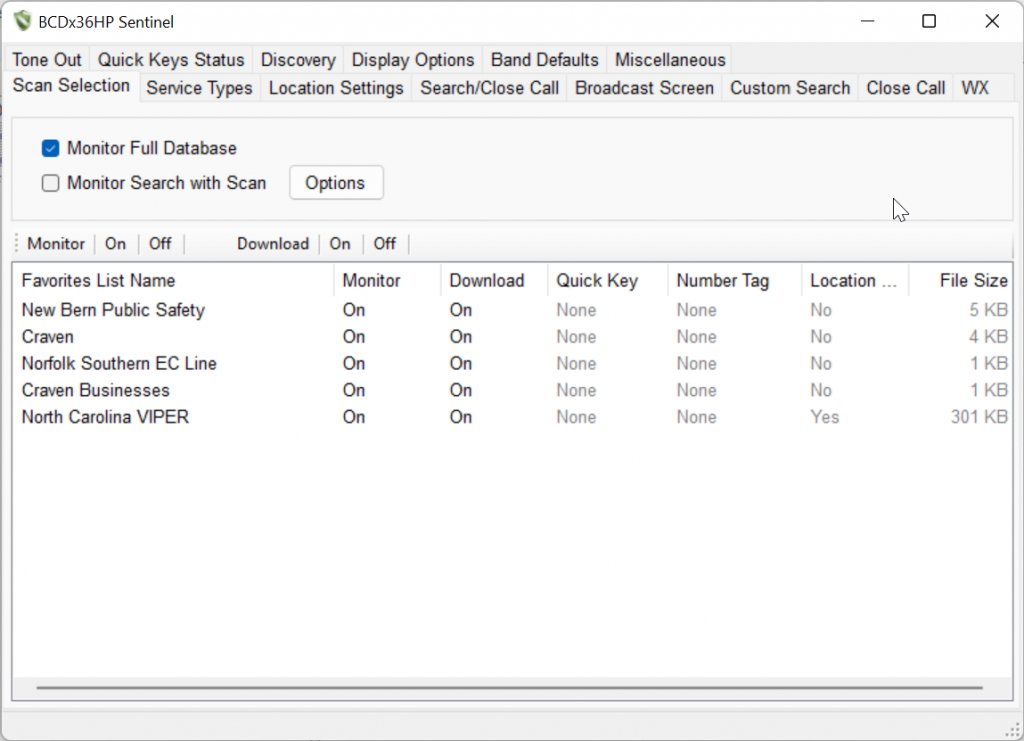
The programming workflow is identical to the SDS100 in every meaningful respect — same Sentinel software (free, Uniden), same ProScan power-user CPS (third-party, paid one-time), same Favorites List files (exportable from Sentinel as .hpe), the same free weekly Uniden master database (HPDB), and the same rule that a RadioReference Premium subscription ($30/yr) is needed only for ProScan’s direct RadioReference import. Read Vol 13 §4 (Programming workflow) ↗ for the full treatment and **Vol 3 (Programming software landscape)** for the Sentinel/ProScan comparison and toolchain installation.
The workflow at a glance:
- Update the firmware first (Vol 5 — Upgrades & Firmware) — Sentinel is the only firmware-update tool, and newer features and upgrade keys depend on current firmware.
- Install Sentinel and/or ProScan on a Windows machine (Vol 3) — Sentinel is the official Uniden tool, free (download from Uniden), sufficient for codeplug edit/write; ProScan is the third-party power-user program ($50 lifetime license, two PCs), with a richer interface, Ethernet control, recording, and logging — but no firmware updates.
- Connect the radio with the supplied USB cable (the front-panel mini-USB port) and choose Mass Storage when the scanner asks.
- Pull current codeplug from radio → host as a starting point.
- Update the master database (Sentinel: UPDATE → Update Master HPDB — free, weekly), then add systems for the local coverage area from Sentinel’s database, or import them with ProScan’s RadioReference integration (needs RadioReference Premium).
- Curate the favorites file — add desired systems, talkgroups, conventional channels, scan-list assignments, alert tones, GPS site mappings (for vehicle install), per-channel attributes.
- Write codeplug → radio.
- Save the codeplug snapshot to
../../programs/uniden-sds200/with a date-stamped filename for backup/recovery.
SDS200-specific addenda to the SDS100 workflow:
- Network path. Once the radio is on the LAN (Menu → Settings → LAN Settings — DHCP or a manual IP), ProScan can control it and stream audio over Ethernet without the USB cable, and the SDS200’s built-in FTP server (set up in the same menu) gives network access to the card. Firmware updates and Sentinel programming still use USB or a card reader.
- Master-codeplug discipline (cross-tool, see §5). Because the favorites-file format is identical between SDS100 and SDS200, a single curated
.HPEmaster file in../../programs/can be written to both radios from the same Sentinel/ProScan session. This is the single biggest operational benefit of owning both radios — codeplug curation cost is paid once, not twice. - Card-reader firmware updates (useful for an installed unit with no PC nearby, or a flaky USB connection). Remove the microSD card, put it in a PC card reader, and run Sentinel — it treats the card as the scanner. Update → Update Firmware writes the new firmware files to the card; reinsert it, power up, and let the radio apply them without interruption. There is no USB thumb-drive update path. Full procedure in Vol 5.
3.2 Codeplug backups
The codeplug-backup discipline is the same as on the SDS100, and the file format is fully interchangeable — favorites files written from one radio import cleanly on the other.
Storage location: ../../programs/uniden-sds200/ — most recent backup: TBD (verify the current backup state; the directory may be sparsely populated until codeplug curation begins in earnest).
Cadence: Snapshot after every meaningful favorites-file edit (new system added, new talkgroup mappings, GPS site-mapping changes). The SD card carries the live config, so a separate SD-image backup (raw dd of the card to a .img file) is also worth keeping as a known-good full-state recovery point — the SD card occasionally corrupts (especially under heavy recording load), and a card-image restore is the fastest recovery path.
Restore: Sentinel reflash of the codeplug from the saved .HPE file, or — for full state recovery from the SD-card image — dd the saved image back to a fresh SD card and slot it in.
Cross-radio sharing — the master-codeplug discipline. Because the SDS100 and SDS200 share the same favorites-file format, the right operational pattern is to maintain one master codeplug per coverage area (e.g., master_home_2026-05-24.hpe, master_travel_eastern_2026-05-24.hpe) and write it to both radios from a single Sentinel/ProScan session. ProScan has explicit support for “write to multiple radios” workflows — connect both radios (one over USB, one over Ethernet, or both over USB sequentially), and the curated favorites file lands on both in one write cycle. This means: GPS site mappings, alert-tone curation, channel-attribute settings, scan-list discipline — all of it gets done once per codeplug-edit cycle, not twice. The cost saved over a year of incremental codeplug edits is substantial; the cognitive cost saved (not having to remember “did I push that edit to both radios?”) is even larger.
One setup step to know about. Neither SDS model has built-in GPS. The Favorites List location data (site and department ranges) is identical on both radios, but the radio configuration for the GPS input differs: the SDS100 takes an external receiver on its mini-USB port (Uniden’s BC-SGPS kit), the SDS200 on its rear GPS jack, and each needs its serial-port baud rate set to match. This is radio-side configuration, not Favorites List content, so it does not break sharing between the two.
Comments (0)