Uniden SDS100 · Volume 3
Uniden SDS100 — Vol 3: Programming
TrueIQ baseband, P25 Phase II, ProVoice option, DMR/NXDN
3.1 Programming workflow
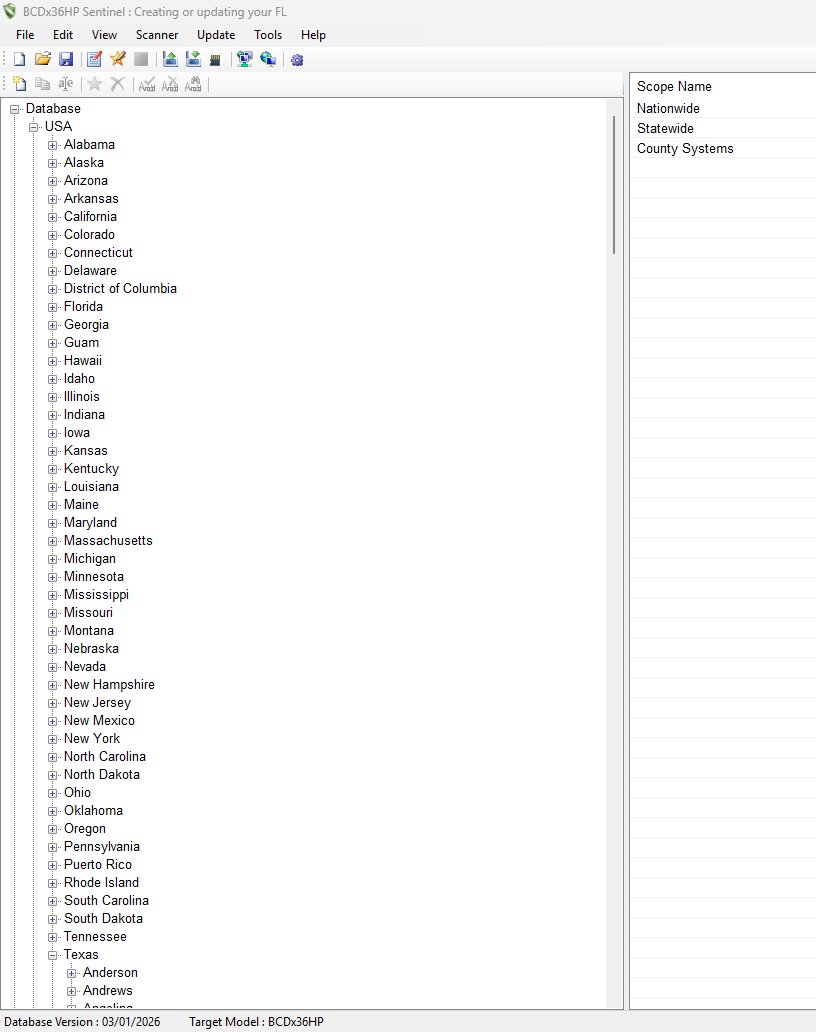
The SDS100 is not normally programmed from the keypad. Its configuration — Favorites Lists, systems, sites, departments, channels, talkgroups, profiles — is large enough that PC software is the practical path, and two Windows programs do the job: Sentinel (Uniden’s own, free) and ProScan (third-party, paid). The scanner also carries Uniden’s complete US/Canada radio database on its microSD card, so it can scan by ZIP code with no programming at all.
Before programming, update the firmware. Sentinel is the only way to update an SDS100’s firmware, and upgrade keys and newer features depend on it. The full procedure — plus the card-reader method and the paid upgrade keys — is in Vol 5 — Upgrades & Firmware.
3.1.1 ProScan vs Sentinel — choosing the software
Both program the SDS100, SDS200, BCD436HP, and BCD536HP. Same job — read the scanner’s data, edit it on the PC, write it back — with different strengths.
Sentinel is Uniden’s free program. For the SDS series it is the “BCDx36HP Sentinel” edition (current version 3.01.01, March 2026), downloaded from the Uniden SDS100 download page. It manages profiles and Favorites Lists, downloads Uniden’s free weekly master database, and is the only tool that updates firmware. Building Favorites Lists from its built-in database needs no subscription. It is what Uniden recommends to a new owner, and it is adequate for most users.
ProScan is a third-party program (proscan.org; current version 24.13, September 2026) sold as a $50 lifetime license that activates on two PCs, with a 30-day trial. It adds a richer programming interface, bulk editing, direct RadioReference import, recording and logging, a band scope, and web-server remote control. It does not update firmware or install upgrade keys. Worth the license for an operator who programs often.
This bench runs ProScan 24.4 as the daily driver, with 24.0 archived in programs/proscan/v24.0/ as a known-good fallback and the license file at programs/proscan/license-key.txt. Both versions co-exist in the ProScan Wine prefix on Parrot at ~/.wine-proscan/; see Vol 3 §4 (ProScan on Linux via Wine) ↗. Sentinel stays installed on the Windows partition because it is the firmware-update path. Full CPS comparison in Vol 3.
3.1.2 The database, and when RadioReference comes in
Two different things get confused:
- Uniden’s master database (the “HPDB”) ships on the microSD card and is refreshed free, every week from RadioReference data. In Sentinel: connect in Mass Storage mode, UPDATE → Update Master HPDB, then Scanner → Write to Scanner. Nothing to buy.
- A RadioReference Premium subscription ($15 for six months, $30 a year, or $60 for two years) is needed only for ProScan’s direct RadioReference import, which pulls a system straight from radioreference.com into ProScan. Without a subscription you can still browse RadioReference in a web browser and use Uniden’s free database.
ProScan workflow: connect the SDS100 with the mini-USB cable (Mass Storage mode) → ProScan reads the current configuration → open ProScan’s RadioReference browser → navigate to the system (e.g., MPSCS) → import it into the target Favorites List with a Quick Key → review the imported alpha tags, priorities, and attenuator settings → write back to the radio. About five minutes per new system, most of it reviewing the import.
3.1.3 What’s on the microSD card
The SDS100 stores everything on its microSD card rather than in internal memory — Favorites Lists, profiles, all settings, the master database, Discovery sessions, recordings, and firmware update files. (Upgrade keys are the exception: they live in the scanner’s internal memory.) The files follow the same structure Sentinel keeps on the PC for the BCDx36HP/SDS family:
- Favorites Lists — an
f_list.cfgindex plus onef_000001.hpd-style file per list profile.cfgandscanner.inf— profile settings and scanner identitydiscvery.cfg— Discovery settings- an
HPDBfolder — the master radio database
Sentinel and ProScan read and write these files when the radio is connected in Mass Storage mode (the card appears to the PC as a drive). The card can also be removed and read in a PC card reader, which Sentinel treats as the scanner — useful for backups, offline editing, and firmware updates. Don’t edit the files by hand; use Sentinel or ProScan. Sentinel can also export a Favorites List as an .hpe file to share or archive.
3.1.4 Firmware updates
Firmware comes only through Sentinel — ProScan does not update firmware, and there is no USB thumb-drive method. As of September 2026 the current release is main firmware 1.26.01 (March 27, 2026) with sub-processor firmware 1.03.15; Uniden’s SDS100 firmware change log lists what each release changed. To see what the radio is running: Menu → Settings → See Scanner Information → Firmware Version. The firmware on this bench unit: TBD — verify on that screen.
The short procedure, per Uniden’s manual: connect the mini-USB cable, choose Mass Storage on the scanner, and in Sentinel select UPDATE → Update Firmware. Sentinel downloads the firmware and writes it to the card; turn the scanner off before unplugging, and it applies the update when it next starts. Keep the battery charged, do not interrupt the update, and back up the card first. The step-by-step, the card-reader alternative, and recovery from a corrupted card are in Vol 5 — Upgrades & Firmware.
3.2 Codeplug backups
Backup discipline matters on the SDS100 because the configuration is large, deeply customized, and time-expensive to recreate. Because everything lives on the microSD card, a copy of the whole card is a complete backup. Backups go to programs/uniden-sds100/codeplug-backups/.
3.2.1 Backup cadence
Back up the card:
- After every meaningful favorites-list edit — adding a new system, reorganizing favorites lists, changing quick-key assignments, adjusting site locations
- Before every firmware update — without exception
- Before any “experimental” change — testing a new attenuator setting across many channels, importing a large new system
- On a calendar schedule — at minimum monthly, even with no changes, to capture accumulated state (recordings, Discovery sessions, quick-key state)
3.2.2 Backup location and naming convention
Backup files live in ../../programs/uniden-sds100/codeplug-backups/ (relative to this volume source — absolute path is Scanners/programs/uniden-sds100/codeplug-backups/). The naming convention is sds100-{nickname}-YYYY-MM-DD.tar.gz where {nickname} is the SDS100 unit nickname from the inventory (TBD — verify the current nickname; the SDS100 should have a registered nickname like sds100-belt or similar). Recent backups for the primary SDS100 should look like:
programs/uniden-sds100/codeplug-backups/
├── sds100-{nickname}-2026-05-01.tar.gz    (pre-update baseline)
├── sds100-{nickname}-2026-05-08.tar.gz    (after MPSCS site additions)
├── sds100-{nickname}-2026-05-15.tar.gz    (after firmware update to X.Y.Z)
└── sds100-{nickname}-2026-05-22.tar.gz    (current)
The most-recent backup file is TBD — verify the date against the backup directory. Each backup should contain the entire contents of the card. An exported Favorites List (.hpe) is not a full backup — it omits profiles, settings, Discovery sessions, and recordings. Copy the whole card.
3.2.3 Backup mechanics
The two practical paths:
Via Sentinel — Sentinel keeps profiles and Favorites Lists on the PC and can export Favorites Lists as .hpe files. Good for the programming; not a substitute for a card copy.
Via direct card copy — turn the scanner off, remove the back cover and battery, take out the microSD card, put it in a PC card reader, and copy everything, e.g. tar czf sds100-{nickname}-$(date +%Y-%m-%d).tar.gz -C /media/<user>/<card> .. This is the gold-standard backup and takes under a minute. (Connecting in Mass Storage mode and copying the drive works too.)
3.2.4 Restore procedure
If the card corrupts:
- Format a known-good microSD card (32 GB or smaller) with the SD Association’s SD Memory Card Formatter
- Copy the most recent backup’s contents back to the card root
- Put the card in the radio and power on — it should start with the configuration from the backup date
With no usable backup, rebuild the card instead: format it, run Sentinel’s Clear User Data on it (tick Display all drives; Windows may need Hide empty drives turned off), then Scanner → Write to Scanner to restore Favorites Lists from Sentinel’s copy. Recordings and Discovery sessions made after the backup are lost either way; upgrade keys are unaffected.
3.2.5 The “I’m about to do something risky” backup
For substantial changes (importing a 500-talkgroup system, testing a beta firmware), take a pre-change backup with a descriptive suffix: sds100-{nickname}-2026-05-24-PRE-mpscs-import.tar.gz. Makes it obvious in three weeks which backup to restore when you realize the import broke something subtle.
Comments (0)