Uniden BCD536HP · Volume 3
Uniden BCD536HP — Vol 3: Programming
P25 Phase II, GPS, Wi-Fi remote control
3.1 Programming workflow
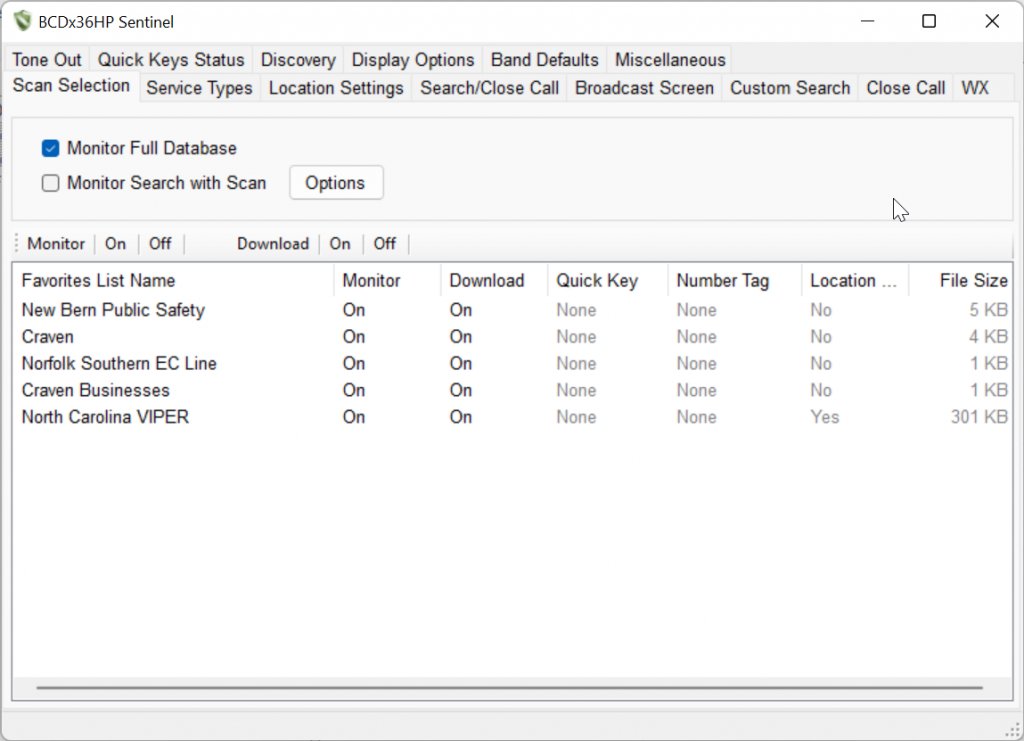
The BCD536HP is programmed with Sentinel — Uniden’s free Windows program for the BCD436HP/BCD536HP and SDS100/SDS200 family — or with third-party software: ProScan ($50) or Butel’s ARC536. See Vol 3 for the programming-software landscape. Sentinel is also the only firmware-update tool; ProScan’s own FAQ says Sentinel is needed for firmware. And because the scanner carries Uniden’s full US/Canada database on its microSD card, it can scan by ZIP code with no programming at all.
Before programming, update the firmware. Paid upgrade keys need minimum firmware versions, and later releases fixed real reception problems. The full procedure — plus the card-reader method, the Wi-Fi dongle, and the upgrade keys — is in Vol 5 — Upgrades & Firmware.
The configuration lives on the microSD card. Favorites Lists, profiles, all settings, Discovery sessions, recordings, and the master database are on the card, not in internal memory. With the USB cable connected and Mass Storage selected on the scanner, the card mounts on the PC as a drive and Sentinel works on the files there.
What’s on the card. The files follow the structure Sentinel keeps on the PC (copies from this bench’s BCD536HP are in ../manuals/uniden-bcd536hp/): an f_list.cfg index plus one f_000001.hpd-style file per Favorites List, profile.cfg and scanner.inf, discvery.cfg, and an HPDB folder for the master database. Don’t edit them by hand — use Sentinel or ProScan. Sentinel can export a Favorites List as an .hpe file for sharing.
The programming flow:
- Update the master database — Sentinel: UPDATE → Update Master HPDB. Uniden publishes it free, every week; no RadioReference subscription is needed. (RadioReference Premium, $30/yr, is required only for direct RadioReference imports in ProScan or ARC536.)
- Build Favorites Lists: add systems from the database into Favorites Lists — modular scan groups such as “Local Public Safety”, “Aircraft”, “Marine”, “Ham VHF/UHF Repeaters”, “Travel-OH-PA-corridor” — and the scanner scans any combination of enabled lists.
- Write to the scanner: connect in Mass Storage mode and use Scanner → Write to Scanner.
- Disconnect cleanly: turn the scanner off before unplugging the USB cable so it finishes writing to the card, then power back up.
Firmware updates also run through Sentinel (UPDATE → Update Firmware in Mass Storage mode). The current release is 1.28.24 (March 24, 2025); see what the radio runs at Menu → Settings → See Scanner Information → Firmware Version. The firmware on this bench unit: TBD — verify. Back up the card before any update — the step-by-step is in Vol 5 — Upgrades & Firmware.
Where Sentinel data lives on the bench:
- The Sentinel application itself: not stored in the repo — the current version (3.01.01) comes from the Uniden BCD536HP download page.
- Archived Sentinel installer:
../../programs/uniden-misc/BCDx36HP_Sentinel_Version_3_00_01.zip— a known-good version stashed for offline reinstall. - Live Sentinel data dir — backed up to
../../programs/uniden-misc/BCDx36HP-Sentinel-data/(FavoriteLists/,Profile/,ActivityLog/,DiscoveryLog/), mirroring Sentinel’s PC-side data and refreshed after edits. See §5 (Codeplug backups).
The big workflow advantage of the SD-card design: the card is the codeplug. Back it up by copying the card in any PC’s card reader; restore by writing a backup to a fresh card.
3.2 Codeplug backups
Codeplug files for the BCD536HP live at:
../../programs/uniden-bcd536hp/— primary backup tree for this scanner: dated card copies and Sentinel exports.../../programs/uniden-misc/BCDx36HP-Sentinel-data/— the shared Sentinel-data backup directory. Contains:ActivityLog/— historical channel-hit logs (useful for “what was active when I was out of town”)DiscoveryLog/— Discovery resultsFavoriteLists/— Favorites Lists (f_list.cfgplus onef_00000N.hpdper list)Profile/— dated profile snapshots
Backup cadence:
- Before any firmware update — non-negotiable. A backup costs 30 seconds; not having one can mean rebuilding the entire scan setup from scratch.
- After every meaningful edit — adding a new agency, restructuring Favorites Lists.
- Quarterly snapshot — a full card copy to the backup tree as a baseline, even if nothing changed. Cards do fail.
Restore procedure:
- Soft restore (most common): in Sentinel, open the saved profile and use Scanner → Write to Scanner in Mass Storage mode.
- Hard restore (card failure): format a new microSD card (32 GB or smaller) with the SD Association’s SD Memory Card Formatter. Then either copy a full card backup onto it, or run Sentinel’s Clear User Data on it (turn off Windows’ Hide empty drives if the blank card doesn’t appear) followed by Write to Scanner.
SD card sourcing: SanDisk Industrial or Samsung PRO Endurance class 10 cards in 16-32 GB are the safe pick. Avoid no-name eBay cards — fake or counterfeit cards are the #1 cause of “my scanner won’t boot anymore” complaints on the RadioReference forums.
Comments (0)